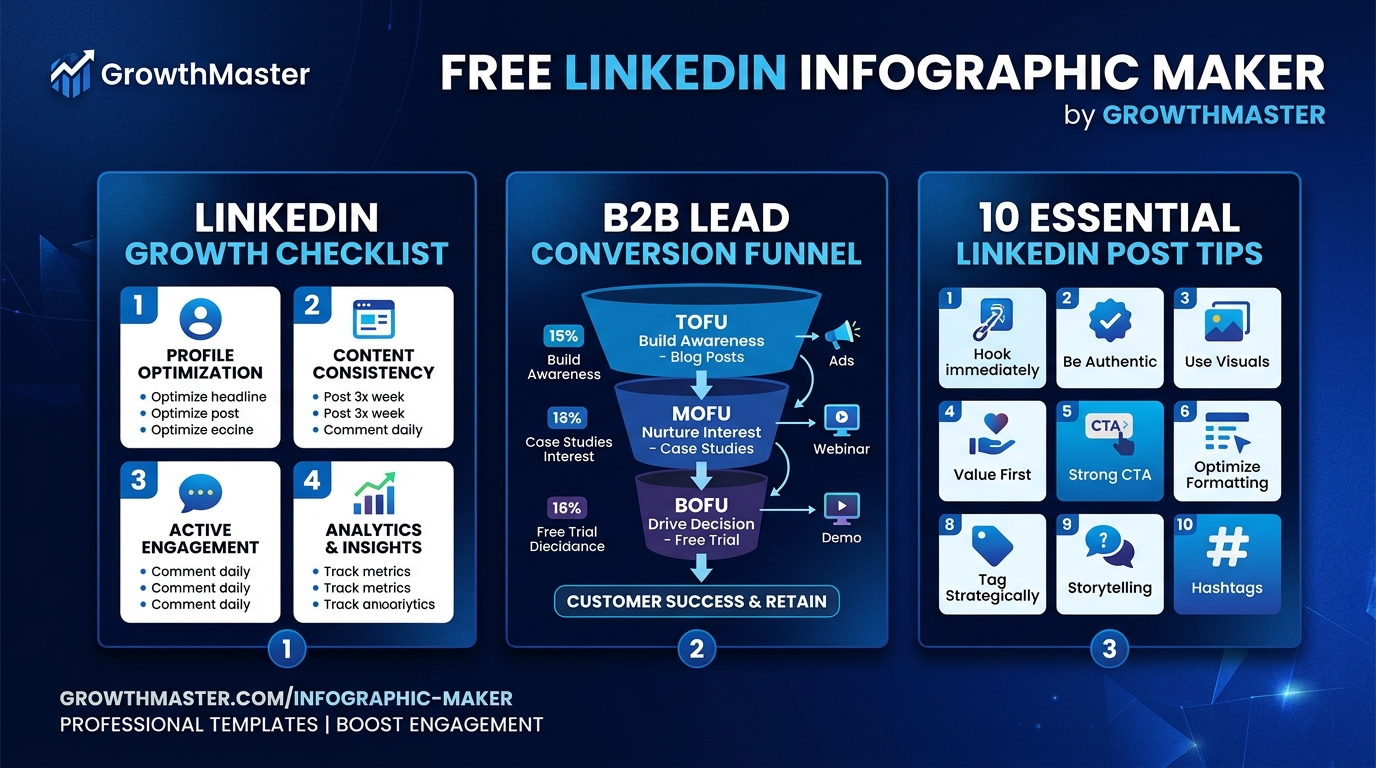
1. Why Infographics Dominate the LinkedIn Algorithm
Text-only posts on LinkedIn are fighting an uphill battle. With millions of posts published daily, mobile scrollers make split-second decisions on whether to stay or swipe past.
Infographics break the scroll because they deliver instant utility. Unlike generic stock photos that users ignore, a structured infographic acts as a **visual summary** of your insight.
According to platform data:
- **3.2x Higher Save Rate:** Users tap "Save" on cheat sheets, funnels, and matrices because they want to reference them in meetings or future work.
- **Higher Dwell Time:** Reading through a 4-quadrant panel or step-by-step checklist keeps readers on your post 40-60 seconds longer than text alone.
- **Viral Sharing Potential:** Infographics are frequently reposted by industry peers, carrying your name, handle, and brand directly to new networks.
The Save Metric
LinkedIn's algorithm heavily rewards saves and reposts. A single high-density cheat sheet often generates more bookmarks than ten text updates combined.
2. Step 1: Pick the Right Visual Structure
The biggest mistake founders make is trying to design an infographic from a blank canvas. High-performing LinkedIn graphics follow proven architectural patterns:
1. **Numbered Panels (4-Quadrant):** Best for educational playbooks, execution steps, or comparing 4 core pillars.
2. **The Funnel:** Ideal for B2B sales pipelines, customer acquisition stages, or lead nurture sequences.
3. **The 9-Row Cheat Sheet:** Perfect for hook formulas, prompt libraries, or software shortcuts.
4. **The Growth Curve:** Best for year-in-review posts, milestone timelines, and revenue progression.
5. **The Content Pyramid:** Ideal for showing foundational vs advanced priorities.
Each structure immediately communicates the logic of your idea before the reader even zooms in.
Free Tool
Make Free LinkedIn Infographic Build Infographics in Seconds With 44 Free Templates
GrowthMaster's free LinkedIn Infographic Maker gives you 44 post-ready templates with 1-click aspect ratio switching, custom brand looks, and sharp PNG downloads. No signup required.
3. Step 2: Write for Mobile Skimmers
Your infographic must be legible on a 6-inch mobile screen without requiring the user to pinch-to-zoom. Follow these visual copywriting rules:
- **One Big Idea per Image:** If your graphic needs two different main headers, split it into two separate posts.
- **Aggressive Sub-editing:** Cut filler words. Change *"It is crucial to ensure that you optimize your headline"* to *"1. Optimize headline"*.
- **Bold the First Words:** Bold the key takeaway in each panel or row so speed-readers capture the value in 5 seconds.
- **Include Clear Attribution:** Always include your @name and headshot at the bottom of the card so your brand travels when the graphic is re-shared.
4. Step 3: Choose Aspect Ratio and Export Clean PNGs
LinkedIn supports multiple image formats, but not all aspect ratios perform equally:
- **4:5 Portrait (1080 × 1350 px):** The undisputed gold standard. It consumes maximum vertical real estate in the mobile feed, pushing other distracting content out of view.
- **1:1 Square (1080 × 1080 px):** Great for simple quote cards, single statements, and desktop feeds.
- **2:3 Tall (1080 × 1620 px):** Best for deep 10-row cheat sheets that reward tapping to expand.
Always export as a crisp 2x PNG to prevent text fuzziness when LinkedIn applies its image compression algorithms.
5. Writing the Companion Hook and Caption
An incredible infographic still needs a compelling post caption. Do not just write *"See the image below"*.
Follow this 3-part companion formula:
1. **The Hook:** State the problem or surprising result (*"90% of LinkedIn creators spend 3 hours writing posts that nobody reads. Here is the 4-step framework we use instead:"*).
2. **The Context:** Add 2-3 sentences explaining the background or why this framework works.
3. **The Call-to-Save:** Ask a specific question and explicitly prompt saves (*"Bookmark this cheat sheet for your next content batch. Which stage are you currently building?"*).

About the Author
GrowthMaster Visuals Team — LinkedIn Visual Strategy & Design
Engineering data-backed visuals, cheat sheets, and infographic templates specifically optimized for the mobile LinkedIn feed.
Frequently Asked Questions
Post single-page infographics as high-resolution PNG images. Save PDF uploads for multi-page carousels where the reader needs to swipe through 4 to 10 slides.